Introduction
API keys are the main authentication mechanism of the HUB2 API. Understanding what they are and how to use them is essential.
API keys are managed on the HUB2 Dashboard, in the “Developer” section, as illustrated below:
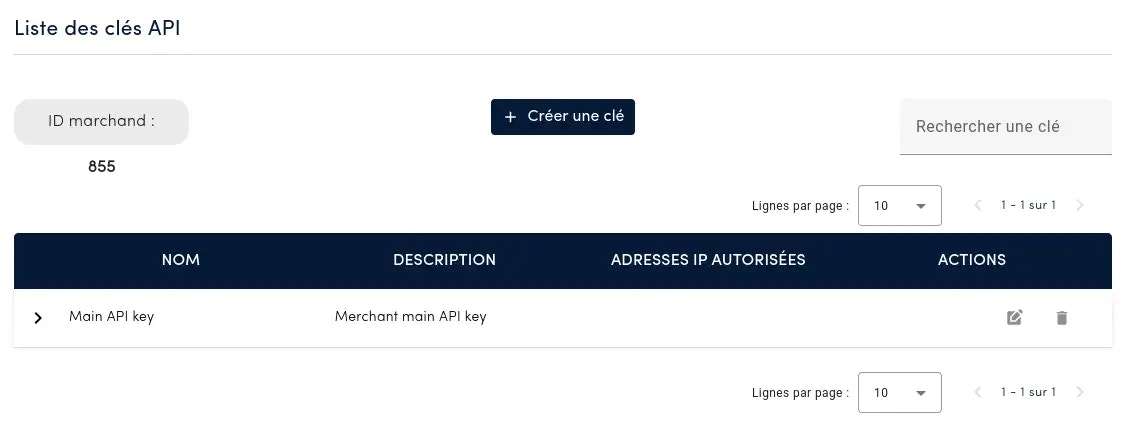
The following screenshot shows the list of existing keys:
Key management
Creating a key
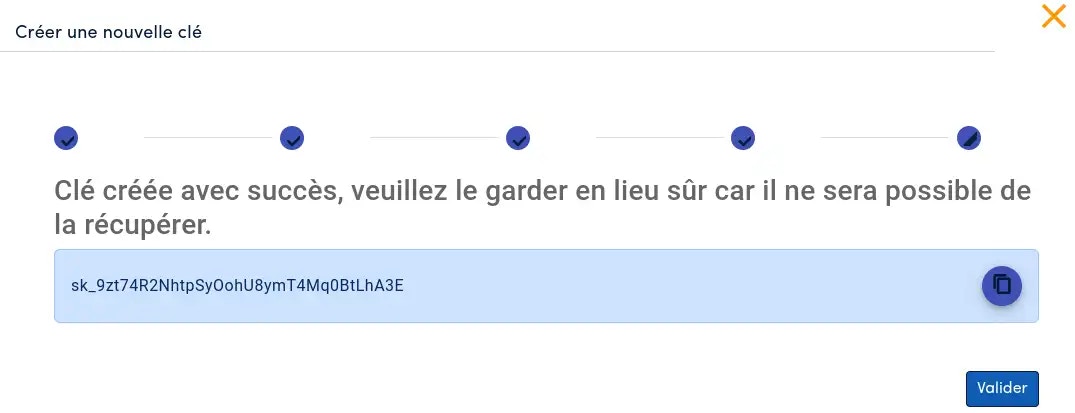
For security reasons, the API key is only visible when it is created and cannot be viewed afterwards.
Create a key
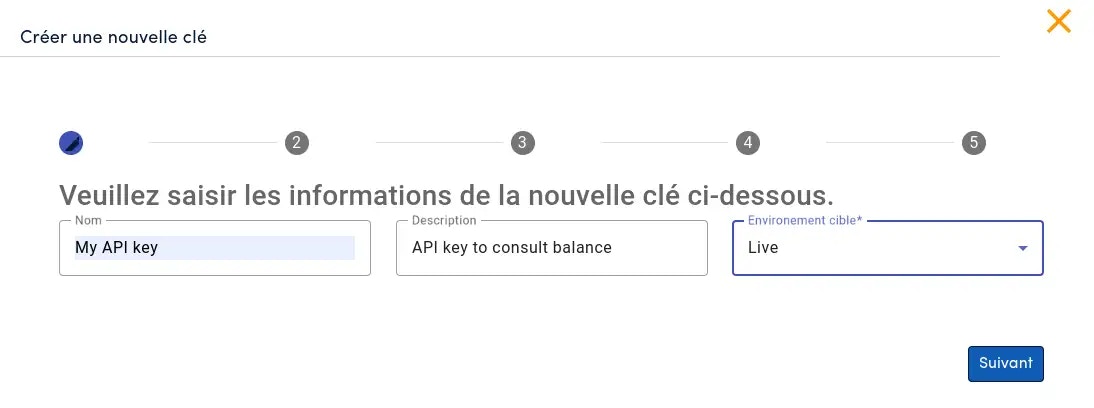
Click the “Create a key” button to open the following window: Details
- (Optional) Enter a name and a description for the new key.
- The environment (sandbox or live) is required. The new key is restricted to this environment. Read more about environments.
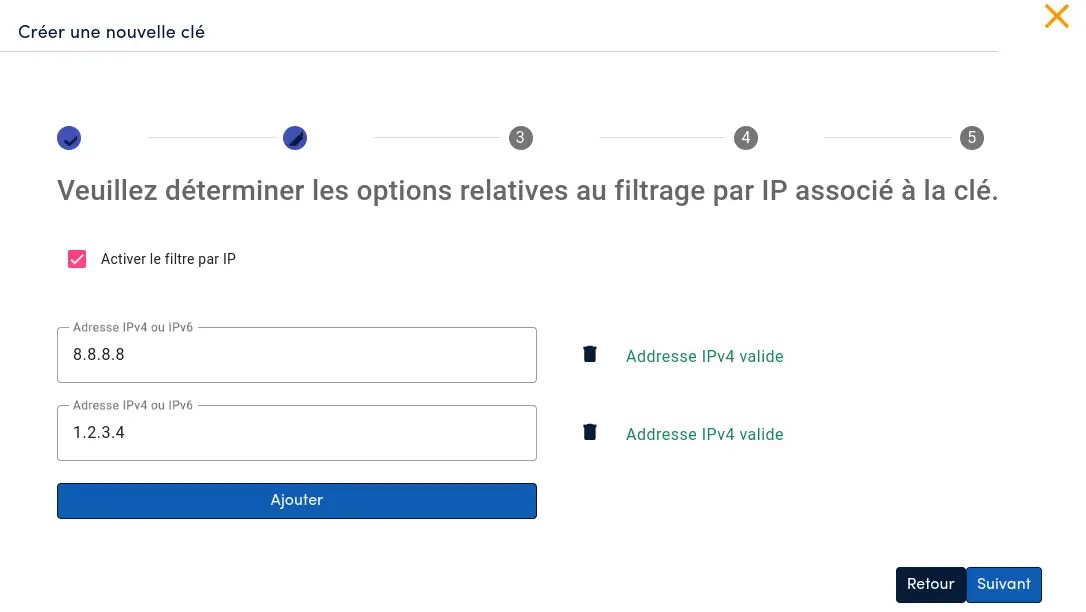
IP Whitelist
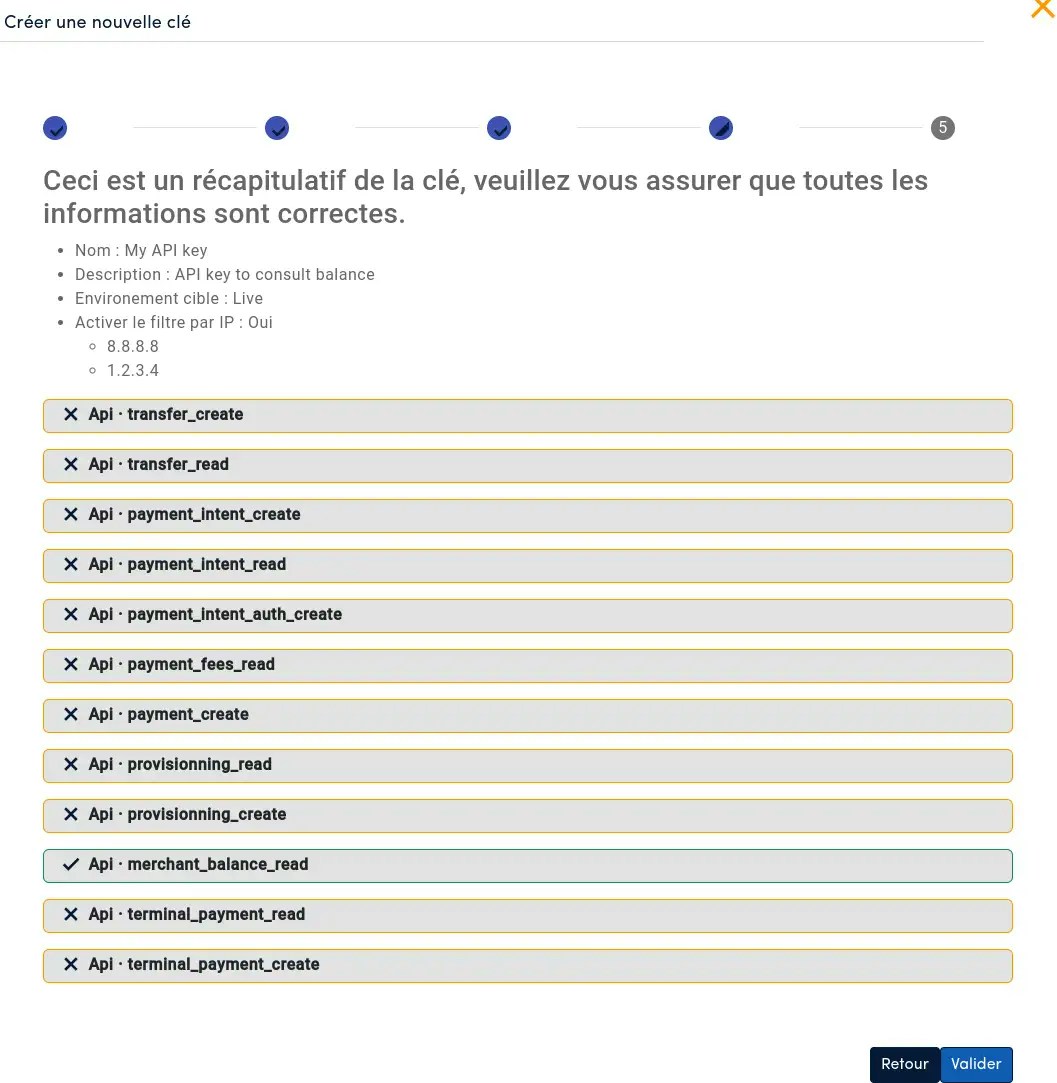
In this section, you can restrict which source IP addresses can use the new API key. Permissions
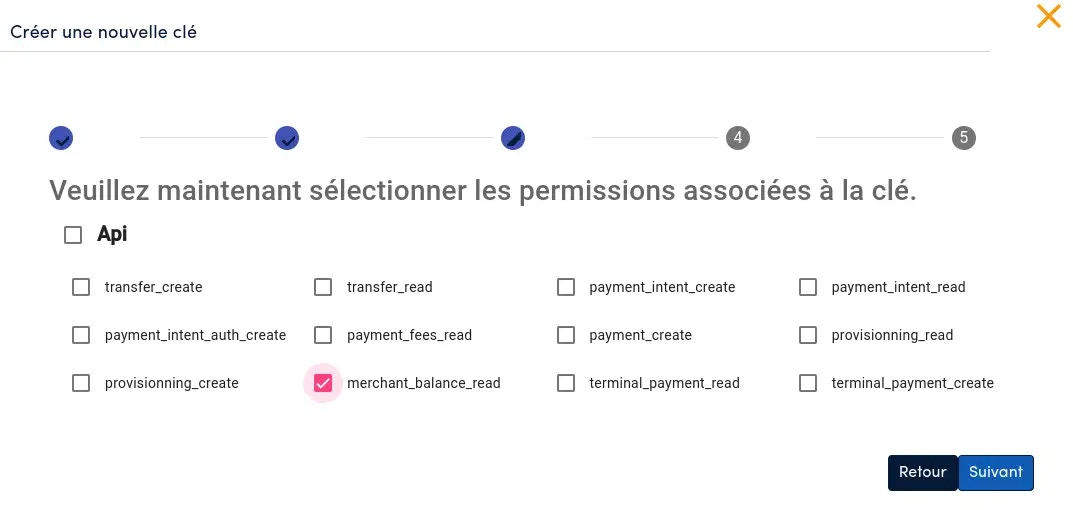
Set the permissions of the new API key here.Permissions allow you to separate responsibilities: a merchant can use several API keys, for example one per component of its software, each with a different role. Review and validate
On the summary page, review the settings of the new API key, then click Validate.The API key is only displayed once. Save it now in a secure vault: it will not be accessible later.
Editing a key
On each API key row, in the “Actions” column, an Edit button lets you change the settings of a key. Editing follows the same steps as creation, except that the key itself cannot be viewed. Every setting can be edited.
Changes to permissions and IP address restrictions take effect immediately. Review your changes carefully before saving them.
Deleting a key
In the “Actions” column, a Delete button lets you delete a key.
Deleting a key is irreversible. Requests using the deleted key are rejected immediately after deletion.
Using the keys
The API reference shows which endpoints require authentication. For these endpoints, set the following HTTP headers on every request to identify and authenticate the sender:
API key configuration
Environment
sandbox: a closed environment for integration testing. No real transaction is created when the API key is set to the sandbox environment: HUB2 simulates provider behaviour, and sandbox transactions use the sandbox transfer and collection accounts.live: the real-world environment. A live key processes real traffic, and providers are contacted when the transaction endpoints are called. Sending traffic in the live environment requires the GO LIVE and an integration review by HUB2.
More on transfer and collection accounts.
IP address restriction
IP address restriction is an optional feature that further secures exchanges between the merchant platform and HUB2.
When an IP address restriction is set on an API key, HUB2 checks that the IP address sending the HTTP request is authorized to use the API key it contains.
Permissions
Permissions are configured per API key, so a merchant can create several keys with different permissions, each with its own responsibility.
The permissions and their descriptions are as follows:
Good practices
Security
A good security practice is to renew API keys regularly. If a key has been inadvertently disclosed to a third party, or stolen by a malicious one, deleting the affected keys and creating new ones limits the impact on the merchant’s business.
Disclaimer: The merchant is responsible for storing its API keys securely on its platform. HUB2 cannot be held responsible for processing illegitimate traffic associated with a merchant API key that has been stolen or disclosed.